
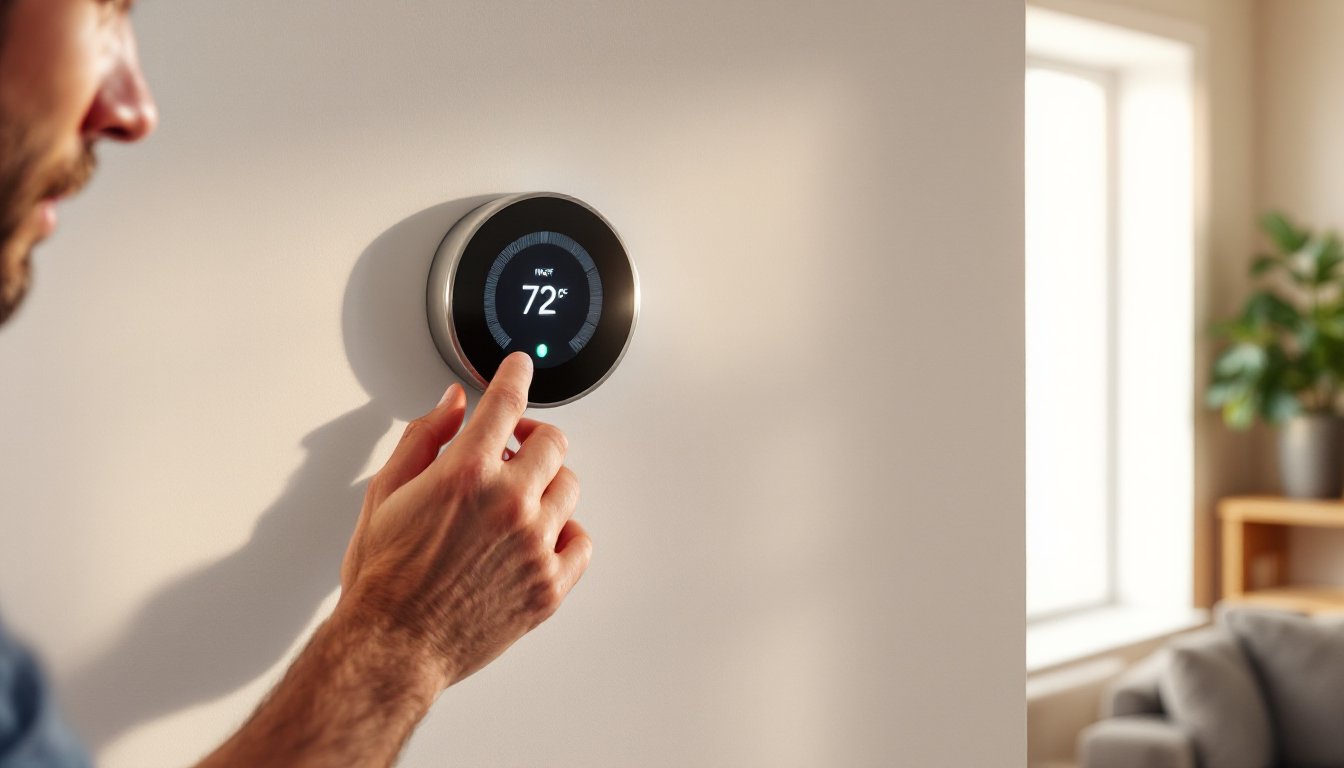
A Nest thermostat that won’t connect, loses its schedule, or refuses to turn on can disrupt comfort and waste energy. These devices are designed to learn and adapt, but like any smart home tech, they hit snags, sometimes from wiring quirks, sometimes from firmware updates, and occasionally from user settings that got flipped without notice. Most problems don’t require a service call. With a methodical approach and a few minutes, homeowners can diagnose and fix the majority of Nest thermostat issues without reaching for a phone or checkbook.
Table of Contents
ToggleKey Takeaways
- Most Nest thermostat troubleshooting issues—including blank displays, connectivity problems, and lost schedules—can be resolved without professional service by checking power supply, Wi-Fi settings, and wiring connections.
- A missing or improperly wired C-wire is the most common cause of Nest thermostat power problems and battery drain; adding a C-wire or Power Connector provides the continuous 24VAC power needed for reliable operation.
- Wi-Fi connectivity for your Nest thermostat improves by positioning the router within 30 feet, switching to less congested Wi-Fi channels, and verifying router compatibility with WPA2/WPA3 encryption settings.
- Lost schedules typically result from software updates, Home/Away Assist settings overriding manual schedules, or accidental changes by household members rather than hardware failure.
- Nest thermostat compatibility requires 24V low-voltage systems; high-voltage systems (110V or 240V) need external relays or adapters, and heat pump configurations demand correct O/B wire setup to prevent heating and cooling mode errors.
- Incorrect temperature readings are usually caused by poor thermostat placement near windows, direct sunlight, or supply registers—moving the device to a neutral interior wall location and applying a temperature offset in settings corrects most discrepancies.
Why Your Nest Thermostat Won’t Turn On (And How to Fix It)
A blank display usually points to a power issue. The Nest charges itself from the HVAC system’s C-wire (common wire) or relies on power stealing from the R-wire during heating and cooling cycles. If neither provides enough juice, the internal battery drains and the screen goes dark.
Check the display first. Press the thermostat ring. If it lights up briefly then fades, the battery is critically low. If nothing happens, pull the display off the base by tugging gently outward. Charge it via micro-USB cable for 30 minutes using a standard phone charger. Reattach it and see if the display stays on.
If the thermostat powers on but shuts off again, the issue is likely a missing or improperly wired C-wire. The C-wire provides continuous 24VAC power and prevents battery drain. Open the thermostat base and check terminal C, if it’s empty, the system is power-stealing, which works inconsistently depending on HVAC load.
To add a C-wire, turn off power at the breaker, then locate the HVAC control board (usually inside the furnace or air handler). Most systems have an unused wire in the thermostat cable bundle. Connect that wire to the C terminal on the control board and the corresponding C terminal on the Nest base. If no spare wire exists, install a 24V add-a-wire adapter or call an HVAC tech to run new thermostat cable. This is a low-voltage job but requires familiarity with control boards.
Some older systems lack a C-wire terminal altogether. In those cases, a Nest Power Connector or third-party adapter like the Venstar ACC0410 can bridge the gap by drawing power from the furnace’s existing transformer.
Solving Wi-Fi and Connectivity Problems
When the Nest can’t reach Wi-Fi, it loses remote access, weather data, and software updates. The thermostat will still control heating and cooling locally, but scheduling and app integration go offline.
Start with router placement. The Nest connects to 2.4 GHz and 5 GHz bands, but 2.4 GHz penetrates walls better. If the thermostat is more than 30 feet from the router or separated by metal ductwork or concrete, signal strength drops. Check the Nest’s Wi-Fi signal strength in Settings > Network, if it shows one or two bars, relocate the router or add a mesh node closer to the thermostat.
Many Wi-Fi connection issues stem from network changes. If the router was recently replaced or the Wi-Fi password changed, the Nest won’t reconnect automatically. Go to Settings > Network > choose your network > enter the new password. Restart the thermostat afterward by selecting Settings > Reset > Restart.
Router compatibility matters. Some routers use MAC address filtering, WPA3-only encryption, or client isolation (common on guest networks). Check the router’s admin panel and make sure the Nest’s MAC address (visible in Settings > Technical Info) is allowed. Switch encryption to WPA2 or WPA2/WPA3 mixed mode if WPA3 is enabled exclusively.
If the Nest connects but frequently drops, interference from other devices (baby monitors, microwaves, cordless phones) may be clashing with the 2.4 GHz band. Log into the router and manually assign a less congested channel, channels 1, 6, and 11 have the least overlap. Alternatively, force the Nest onto the 5 GHz band if signal strength permits by creating a separate SSID for 5 GHz only.
What to Do When Your Nest Thermostat Loses Its Schedule
A vanished schedule is frustrating but rarely a hardware fault. It usually happens after a software update, a factory reset, or when the thermostat switches between Home/Away Assist and manual mode without the user realizing it.
Check if the schedule is disabled. Open the Nest app or press the thermostat display, go to Settings > Schedule, and confirm a schedule exists. If it’s blank, the thermostat may have been reset or the schedule deleted during troubleshooting. Rebuild it manually by selecting each day and setting temperature setpoints for morning, midday, evening, and night.
Home/Away Assist can override schedules if motion sensors or phone location indicate the house is empty. Go to Settings > Home/Away Assist and review the settings. If it’s set to Auto-Away, the Nest may lower temps when it doesn’t detect activity, ignoring the schedule. Switch to manual mode for consistent schedule adherence, or adjust the Away temperature threshold so it doesn’t conflict with scheduled setpoints.
Occasionally, scheduling bugs appear after firmware updates. Restart the thermostat by going to Settings > Reset > Restart (this doesn’t erase settings). If the schedule still won’t stick, perform a full reset, Settings > Reset > All Settings, then reconfigure from scratch. Tedious, but it clears software glitches that survive a standard restart.
If multiple household members use the app, check permissions. Sometimes a secondary user accidentally edits or deletes the schedule. Review shared access in the app under Settings > Home Info > Household Members, and confirm who has control privileges.
Fixing Heating and Cooling System Compatibility Issues
The Nest works with most 24V HVAC systems, gas furnaces, heat pumps, central AC, boilers, but it doesn’t play nice with all of them. Incompatibility surfaces as error codes (E74, E298), short cycling, or one mode (heat or cool) not working while the other does.
Run the compatibility checker first. Before wiring, visit the Nest website’s compatibility tool or use the app’s installation wizard. Input the existing thermostat’s wiring configuration. If the system uses proprietary protocols (like some Honeywell or Carrier boards), the Nest may not communicate correctly.
Heat pumps with auxiliary or emergency heat need specific wiring. The Nest supports single-stage and multi-stage heat pumps, but the O/B wire (reversing valve) must be configured correctly during setup, either cooling or heating mode depending on the manufacturer. Check the old thermostat or HVAC manual to confirm. Incorrect O/B settings cause the system to blow cold air when heating is called for, or vice versa.
High-voltage systems (110V or 240V baseboard heaters, line-voltage thermostats) are not compatible with the Nest without a relay or transformer. The Nest is designed for low-voltage (24VAC) control signals. Attempting to wire it directly to line voltage will damage the thermostat and create a fire hazard. Use a line-voltage relay (like the Aube REL2400) to interface between the Nest and the heater.
Some boiler systems and zone-controlled setups require a C-wire and isolation relay to prevent backfeeding power through the zone valves. Addressing frequent heating and cooling errors often involves reviewing the control board wiring diagram. If error codes persist after verifying wiring, the issue may be transformer capacity, the HVAC system’s transformer must supply at least 20VA to reliably power the Nest and the relay coils.
Resolving Battery and Power-Related Errors
The Nest displays specific alerts when power is unstable: low battery warnings, blinking red lights, or error messages like N260 (unable to charge). These indicate the internal lithium-ion battery isn’t getting enough charge from the HVAC system.
Low battery warnings appear when the Nest can’t maintain charge during normal operation. This is almost always a C-wire issue. Without a C-wire, the Nest “steals” power during heating or cooling cycles. Short cycles, mild weather (when the system runs infrequently), or high-efficiency systems (which use less power) all starve the thermostat.
When troubleshooting battery issues and power faults, inspect the wiring at the base. Loose connections at terminals R, W, Y, G, or C cause intermittent power. Remove each wire, check for corrosion or frayed strands, trim if necessary, and reinsert firmly. A poor connection at the R terminal (power supply) is particularly common.
If a C-wire is installed but the battery still drains, measure voltage at the C and R terminals using a multimeter. It should read close to 24VAC. If voltage is significantly lower, say, 18VAC, the transformer in the HVAC system may be undersized or failing. Replace it with a 40VA or larger 24VAC transformer.
Error N260 means the Nest detected a charging fault. This can happen if the internal battery has degraded (usually after 3–5 years of use). Google’s warranty covers defects, but out-of-warranty units may need replacement. Before assuming battery failure, try a factory reset and USB charge to rule out software issues.
Troubleshooting Incorrect Temperature Readings
When the Nest reads 72°F but the room feels like 68°F, or vice versa, trust the handheld thermometer, not the display. Incorrect readings usually come from placement, sunlight, or sensor drift.
Thermostat location is critical. The Nest should be mounted on an interior wall, about 5 feet off the floor, away from windows, doors, vents, and direct sunlight. Sunlight hitting the display heats the internal temperature sensor, causing false-high readings. A thermostat mounted near a supply register reads warmer air than the rest of the room. Moving it to a more neutral location often fixes chronic inaccuracy.
If the Nest is well-placed but still reads wrong, check for drafts or heat sources behind the wall. Ductwork, exterior walls with poor insulation, or recessed lighting in the ceiling cavity above can all skew readings. Use a non-contact thermometer to compare the wall temperature near the thermostat to the ambient room temp. A difference of more than 2°F suggests the wall is influencing the sensor.
The Nest allows a temperature offset in settings to manually correct consistent error. Go to Settings > Equipment > Continue > Temperature Sensor > Calibrate. This doesn’t actually recalibrate the sensor (it’s not user-serviceable), but it applies a fixed offset. If the room measures 2°F cooler than the display, enter a –2°F offset.
Dust buildup can insulate the sensor. Pull the display off the base and use compressed air to blow out the sensor cavity. Don’t use cleaning sprays or solvents, they can damage the sensor.
Finally, consider whether the HVAC system itself is cycling correctly. Short cycling (running less than 5 minutes per cycle) prevents even temperature distribution. Oversized equipment, clogged filters, or a failing blower motor all contribute. If the thermostat reads correctly but comfort is inconsistent, the problem is upstream in the HVAC equipment, not the Nest.
Conclusion
Most Nest thermostat issues trace back to wiring, power supply, or placement rather than device failure. A methodical check of connections, network settings, and sensor location resolves the majority of problems without professional help. When error codes persist or the system behaves erratically even though correct wiring, consult the HVAC manual and verify compatibility, some systems need isolation relays or upgraded transformers to work reliably with smart thermostats.